

File Explorer Crashing? Here’s How to Fix It Fast

file explorer crashing Windows 11 – file explorer crashing
File explorer crashing is one of the most frustrating Windows problems — it can freeze your entire desktop, wipe out open folder windows, and kill your workflow in seconds.
Quick fixes, ranked by how fast they work:
- Restart File Explorer — Open Task Manager (Ctrl + Shift + Esc) > find Windows Explorer > right-click > Restart
- Clear File Explorer cache — File Explorer > Options > General tab > click Clear under Privacy
- Change display scaling — Avoid 175% scaling; set it to 100%, 150%, or 200% instead
- Disable shell extensions — Use ShellExView to turn off non-Microsoft extensions
- Rebuild the search index — Control Panel > Indexing Options > Advanced > Rebuild
- Run system scans — Run
sfc /scannowandDISM /Online /Cleanup-Image /RestoreHealthin an admin Command Prompt
Most crashes come down to one of a handful of causes — a bloated cache, a bad shell extension, a broken search index, or corrupted system files. The good news: almost all of them are fixable without reinstalling Windows.
One user described the experience perfectly: File Explorer would freeze whenever they opened a folder with many files or used the search bar — and basic fixes like restarting the PC didn’t help. Sound familiar? You’re not alone, and you’re in the right place.
This guide walks you through every fix, from the fastest one-click restarts to deeper repairs — in plain language, no IT degree required.
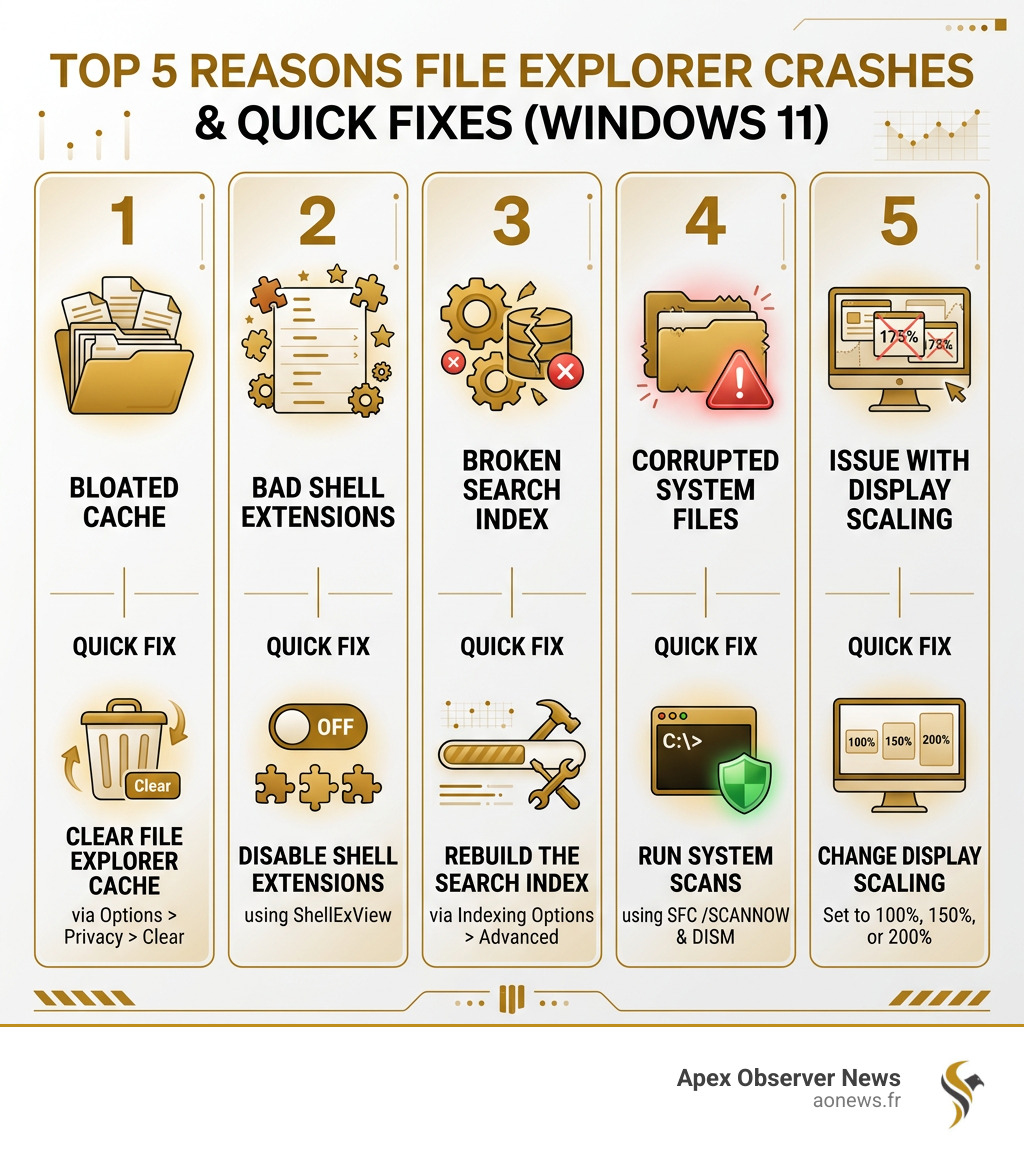
Top 5 reasons File Explorer crashes and quick fixes for each on Windows 11 – file explorer crashing infographic
Why is My File Explorer Crashing on Windows 11?
If you are running Windows 11, particularly the 23H2 build, you might have noticed that the “shell” (which is just a fancy name for the user interface including the taskbar and Start menu) occasionally goes poof. When file explorer crashing occurs, it’s rarely a random act of malice from your computer. Usually, there is a specific culprit hiding in the background.
Common triggers include:
- System File Corruption: Sometimes important files like
FileExplorerExtensions.dllget corrupted, leading to an “access violation” (error code 0xc0000005) that shuts the program down. - Display Scaling Glitches: It sounds strange, but setting your display scaling to exactly 175% is a known trigger for stability issues.
- Third-Party Shell Extensions: When you install apps like 7-Zip, WinRAR, or Dropbox, they add items to your right-click menu. If these are poorly coded, they can take down the whole explorer process.
- Search Indexing Loops: The Windows Search service provides content indexing and property caching. If the index becomes bloated or corrupted, File Explorer may hang while trying to load folder contents.
- Outdated Drivers: Your GPU handles the rendering of your windows. If your graphics drivers are ancient, Explorer might struggle to draw the interface. We recommend you Download the latest NVIDIA drivers or the equivalent for your hardware to ensure compatibility.
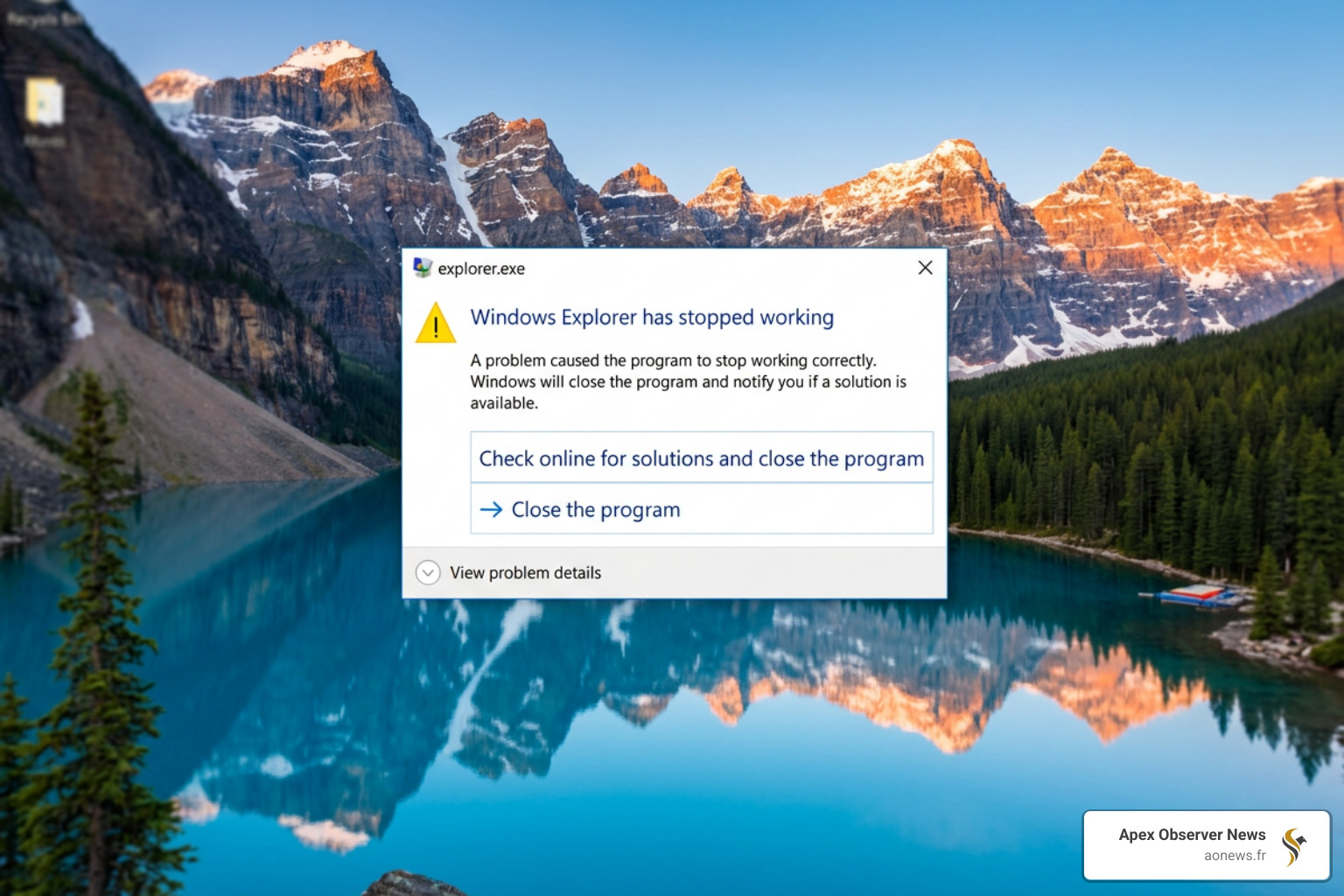
Windows Error Reporting dialog showing explorer.exe has stopped working – file explorer crashing
Immediate Fixes: Restarting and Clearing Cache
Before we dive into the deep technical repairs, let’s look at the “low-hanging fruit.” These are the steps that take less than two minutes and solve about 60% of all file explorer crashing incidents.
How to Restart File Explorer Crashing via Task Manager
When File Explorer freezes, you don’t necessarily need to reboot your whole computer. You just need to kill the explorer.exe process and start it fresh.
The Standard Way:
- Press Ctrl + Shift + Esc to open Task Manager.
- If you see a simplified view, click “More details.”
- Under the Processes tab, scroll down to the “Windows processes” section.
- Find Windows Explorer, right-click it, and select Restart. Your taskbar will disappear for a second and then reappear.
The Pro Way (Command Prompt): If the interface is so frozen you can’t click anything, use the command line:
- Press Win + R, type
cmd, and press Enter. - Type
taskkill /f /im explorer.exeand hit Enter. This forcefully stops the process. - Type
start explorer.exeand hit Enter to bring it back to life.
If this happens to you often, we suggest creating a desktop shortcut. Right-click your desktop, choose New > Shortcut, and paste: C:\Windows\System32\cmd.exe /c taskkill /im explorer.exe /f & start explorer.exe. You can even assign a keyboard hotkey to this shortcut for an instant “panic button” reset.
If the crashes seem related to visual glitches, you might need to perform a clean driver install using the Display Driver Uninstaller (DDU).
Clearing File Explorer History and Cache
Windows tries to be helpful by remembering every folder you’ve visited and every file you’ve opened. Over time, this “Quick Access” cache can become corrupted.
- Open File Explorer.
- Click the three dots (…) in the top menu and select Options.
- Under the General tab, look for the Privacy section.
- Click the Clear button next to “Clear File Explorer history.”
For a deeper clean, you can manually delete the destination caches. Press Win + R, paste %APPDATA%\Microsoft\Windows\Recent\AutomaticDestinations, and delete everything in that folder. Repeat the process for %APPDATA%\Microsoft\Windows\Recent\CustomDestinations. This wipes your Quick Access shortcuts (but not your actual files!) and often stops the crashing immediately.
Table
| Feature | What it Stores | Why it Crashes |
|---|---|---|
| Quick Access | Frequently used folders | Broken paths or network drives that no longer exist. |
| Recent Files | Lately opened documents | Corrupted metadata or “broken” file icons. |
| Search History | Past search queries | Bloated index files causing lag. |
Advanced System Repairs and Search Indexing
If clearing the cache didn’t work, we need to look at the health of your Windows installation itself.
Running SFC and DISM Scans
Windows has built-in “doctors” that can find and fix corrupted system files like FileExplorerExtensions.dll.
- Press the Windows Key, type
cmd, and select Run as Administrator. - Type
DISM /Online /Cleanup-Image /RestoreHealthand press Enter. This connects to Windows Update to download healthy versions of system files. - Once that finishes, type
sfc /scannowand press Enter.
The SFC (System File Checker) will compare your system files against the healthy versions. If it finds a mismatch, it will automatically replace the broken file. We have seen many cases where this simple two-step process stops file explorer crashing for good.
Rebuilding the Windows Search Index to Stop File Explorer Crashing
Is your File Explorer freezing specifically when you use the search bar or open a folder with thousands of images? The Windows Search service might be the culprit. If the service stops automatically or the index is “out of sync,” Explorer will hang while waiting for data that never arrives.
- Open the Control Panel (search for it in the Start menu).
- Set the “View by” to Small icons and click Indexing Options.
- Click the Advanced button (you’ll need admin rights).
- In the Troubleshooting section, click Rebuild.
Windows will warn you that this might take a while. Let it run in the background. It will delete your old, potentially corrupted index and create a fresh one from scratch.
Troubleshooting Third-Party Apps and Shell Extensions
Sometimes the call is coming from inside the house—but the “house” is a third-party app you installed months ago.
Disabling Problematic Shell Extensions
Shell extensions are plugins that add functionality to File Explorer. Think of the “Scan with Antivirus” or “Extract here” options in your right-click menu. If one of these is buggy, it can cause file explorer crashing every time you right-click a file.
Since Windows doesn’t have a built-in manager for these, we use a trusted tool called ShellExView.
- Download and run ShellExView.
- Go to Options and select Hide All Microsoft Extensions. This leaves only the third-party ones.
- Look for extensions highlighted in pink or those belonging to software you recently installed.
- Select them, right-click, and choose Disable Selected Items.
- Restart
explorer.exe(using the Task Manager method mentioned earlier).
If the crashing stops, you’ve found your culprit! You can then re-enable them one by one to pinpoint the exact app causing the headache.
Adjusting Display Scaling and Preview Settings
We mentioned earlier that 175% scaling is a “danger zone” for Windows 11. If you are using a high-resolution monitor, try changing your scaling to 150% or 200% via Settings > System > Display.
Additionally, the Preview Pane can cause crashes if it tries to generate a preview for a corrupted video or image file. To disable it:
- Open File Explorer.
- Click View in the top menu.
- Hover over Show and uncheck Preview pane.
- Go to Options > View tab and check the box for “Always show icons, never thumbnails.”
This stops Windows from trying to “read” into every file before you open it, which significantly reduces the load on the system.
When to Perform a Clean Boot or Windows Reinstall
If you’ve tried everything above and File Explorer is still acting like a moody teenager, it’s time to isolate the software environment.
A Clean Boot starts Windows with only the bare essential drivers and programs.
- Press Win + R, type
msconfig, and hit Enter. - On the Services tab, check Hide all Microsoft services, then click Disable all.
- Go to the Startup tab and click Open Task Manager. Disable every startup item there.
- Restart your PC.
If File Explorer works perfectly in a Clean Boot, you know for a fact that a background app (like an antivirus or a utility tool) is causing the crash. You can then re-enable services slowly to find the offender.
If even a Clean Boot doesn’t help, you might consider an In-place Upgrade. This “refreshes” Windows by installing a fresh layer of system files over your current ones without deleting your apps or documents. It’s the ultimate “reset” button before you have to resort to a full, data-wiping clean installation.
Frequently Asked Questions about File Explorer Crashing
Does “Launch folder windows in a separate process” help?
Yes! By default, all folder windows run under one explorer.exe process. If one folder crashes, the whole desktop (taskbar included) goes down. You can change this by going to File Explorer Options > View tab and checking “Launch folder windows in a separate process.” This way, if one window freezes, the rest of your system stays stable.
Can antivirus software cause File Explorer to freeze?
Absolutely. Security software like AVG or Norton deep-scans files as you browse folders. If the antivirus engine hangs while scanning a specific file type, it will lock up File Explorer. Try temporarily disabling your third-party antivirus to see if the stability improves.
What should I do if File Explorer crashes when opening specific folders?
This is usually caused by a corrupted file within that folder (often a video file with a broken header). Disable the Preview Pane and Thumbnails using the steps in the “Adjusting Display Scaling” section above. This prevents Windows from trying to process the corrupted file’s data as soon as you enter the folder.
Conclusion
Dealing with file explorer crashing is a test of patience, but it doesn’t have to be a mystery. By starting with simple cache clears and moving toward system repairs like SFC scans and shell extension management, you can usually restore stability in under twenty minutes.
At Apex Observer News, we know that keeping your tech running smoothly is essential for staying productive and informed. Whether you’re tracking the latest NASCAR results or just trying to organize your family photos, a stable PC is your best tool. If you’re still having trouble with other Windows 11 quirks, be sure to check out our guide on how to Fix Windows 11 WiFi options not showing to keep your connection as stable as your file system.
Stay updated, stay stable, and don’t let the “not responding” dialog win!

[…] panic. It’s common for the interface to hang if you have thousands of files. You can learn How to Fix a Crashing File Explorer Without Losing Your Mind to keep your configuration session on […]