

When Your Screen Goes Wrong: How to Fix Windows Display Driver Problems Fast
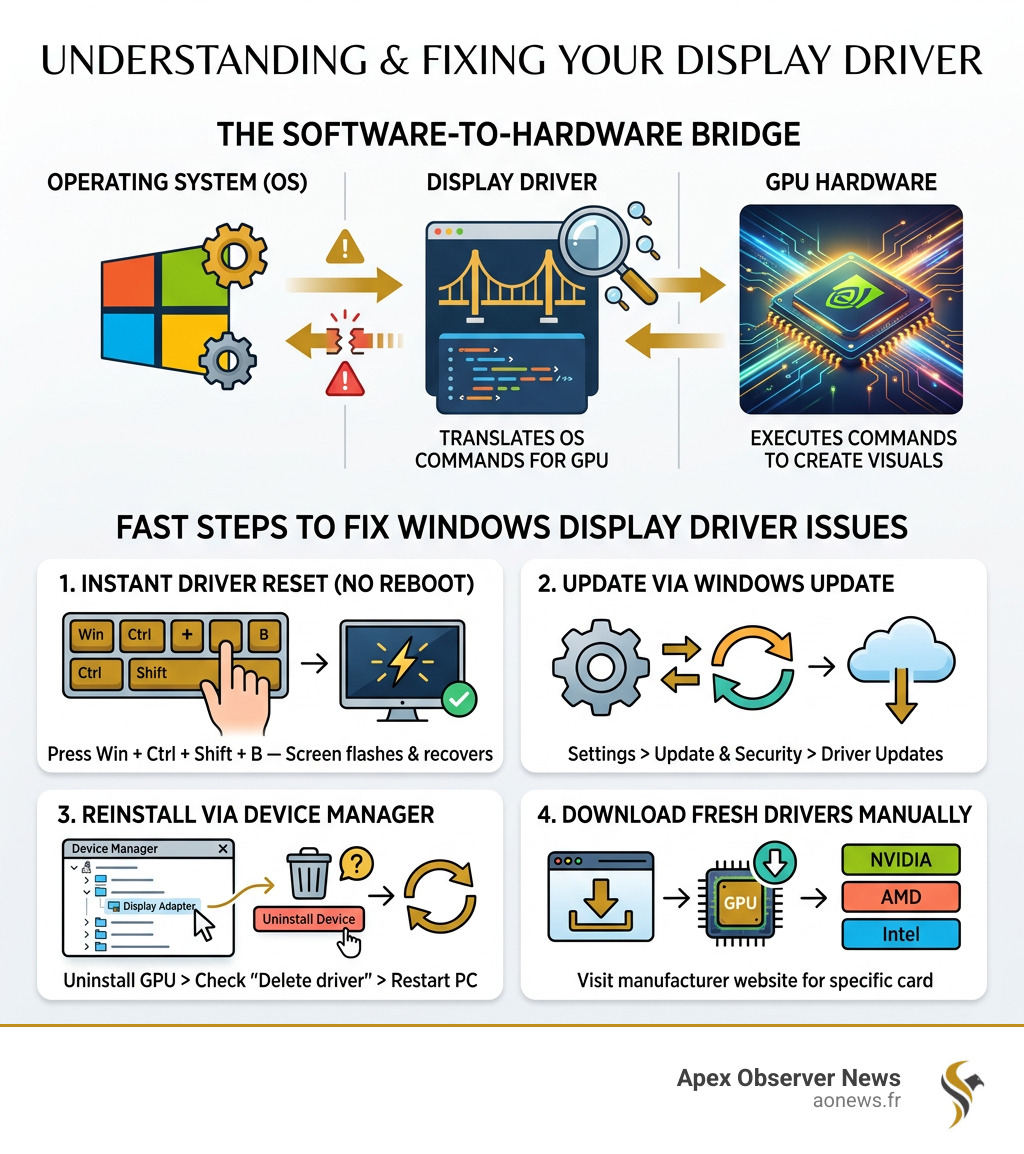
If you need to fix Windows display driver issues right now, here are the fastest solutions:
- Instant reset (no reboot): Press
Win + Ctrl + Shift + B— your screen will flash briefly, then recover - Update via Windows Update: Settings > Update & Security > Check for Updates > View Optional Updates > Driver Updates
- Reinstall via Device Manager: Right-click Start > Device Manager > Display Adapters > Right-click your GPU > Uninstall Device > check “Delete the driver software” > Restart
- Download fresh drivers manually: Visit NVIDIA, AMD, or Intel’s download center for your specific card
Screen flickering. A sudden black flash. Games stuttering when they used to run smooth. If any of that sounds familiar, your display driver is likely the culprit.
Your display driver is the software bridge between Windows and your GPU. When it breaks — due to a bad update, corrupted files, or a hardware mismatch — your whole visual experience falls apart. The good news? Most display driver problems are fixable in under 10 minutes, without any special tools.
This is especially common after major Windows updates. The Windows 10 version 1803 update, for example, triggered widespread display driver crashes across different hardware brands. And Microsoft’s May 2024 Patch Tuesday addressed 61 vulnerabilities, many tied directly to display driver conflicts.
I’m Faisal S. Chughtai, founder of ActiveX, with years of hands-on experience in Windows system management, app development, and PC troubleshooting — including helping users fix Windows display driver failures across a wide range of hardware setups. In this guide, I’ll walk you through every fix, from a one-second keyboard shortcut to a full clean reinstall.
Related content about fix windows display driver:
Recognizing Symptoms and the Quickest Way to Fix Windows Display Driver Issues
Before we dive into deep technical repairs, we need to know what we are fighting. Display driver issues rarely happen in silence. You might notice your screen flickering like a dying lightbulb, or perhaps you are staring at a “Black Screen of Death” where only your mouse cursor is visible. Other common red flags include “artifacting”—strange blocks of color or lines appearing across your desktop—and sudden system freezes while watching videos or gaming.
The most frustrating error is the infamous “Display driver stopped responding and has recovered” message. This usually happens when Windows detects that the GPU is taking too long to process a command, triggering a Timeout Detection and Recovery (TDR) event.
The Magic Keyboard Shortcut: Win+Ctrl+Shift+B
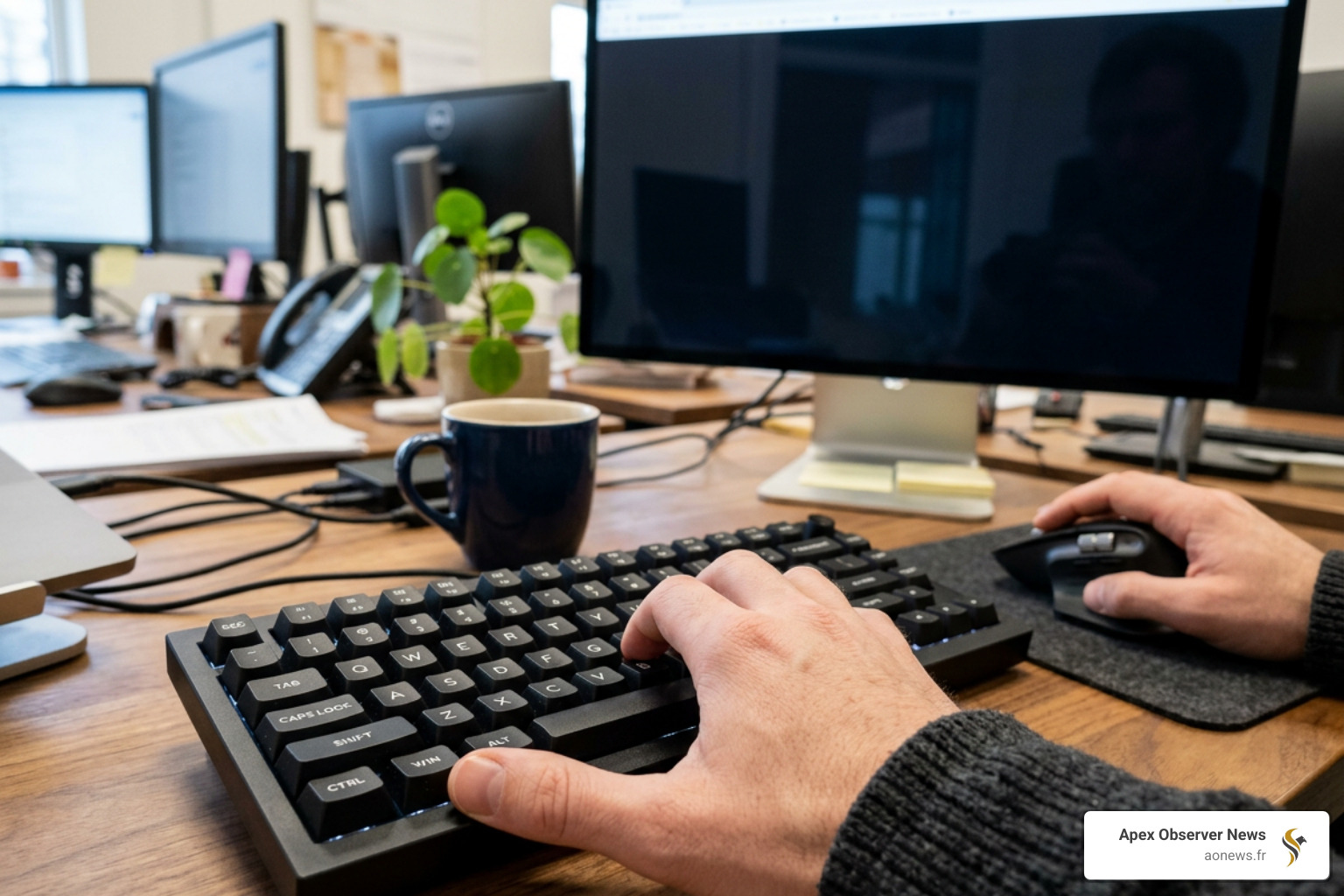
If your screen is frozen or flickering right now, don’t reach for the power button just yet. Windows has a built-in “emergency reset” for graphics drivers.
By pressing Windows Key + Ctrl + Shift + B, you trigger a soft reset of the graphics subsystem. You will hear a short beep, the screen will go black for a second, and then it will refresh. This shortcut doesn’t just “restart” the driver; it actually saves a diagnostic log (dispdiag) and queues telemetry data for Microsoft to analyze black screen issues. It’s a fantastic way to fix Windows display driver stutters without losing your unsaved work in a full reboot.
Tablet Tip: If you are on a Windows tablet without a keyboard, you can achieve the same result by quickly pressing the Volume Up and Volume Down buttons simultaneously three times within two seconds.
Use Windows Update to Fix Windows Display Driver Errors
Many of us ignore those “Update and Restart” notifications, but Microsoft uses these patches to fix critical vulnerabilities. In May 2024 alone, Patch Tuesday fixed 61 vulnerabilities, many of which were related to display driver stability.
To use this method:
- Go to Settings > Update & Security > Windows Update.
- Click Check for updates.
- Crucially, look for View optional updates. Most driver fixes are tucked away in this sub-menu.
- Expand Driver updates, select your graphics driver, and click Download and install.
Watch it on YouTube: The best way to get driver updates in Windows
Identifying Your Graphics Hardware
To manually fix Windows display driver problems, you must know exactly what hardware you own. Are you running an NVIDIA GeForce, an AMD Radeon, or Intel Integrated Graphics?
We recommend checking this via the Device Manager:
- Right-click the Start button and select Device Manager.
- Double-click Display adapters.
- Note the exact name of the hardware listed there.
If your Device Manager is acting up or crashing, you might need to repair your broken Windows File Explorer in minutes first, as these system tools are often interconnected.
How to Uninstall and Reinstall Your Display Driver Using Device Manager
Sometimes a simple update isn’t enough because the existing driver files are corrupted. In this case, we need to perform a “surgical” removal and let Windows start from scratch.
- Press Windows + R, type
devmgmt.msc, and hit Enter. - Expand the Display adapters section.
- Right-click your graphics card and select Uninstall device.
- IMPORTANT: Check the box that says “Delete the driver software for this device.” If you don’t check this, Windows will simply keep the corrupt files and reinstall them upon reboot.
- Click Uninstall and restart your computer.
When your PC reboots, don’t panic if the resolution looks terrible. Windows will automatically load the Microsoft Basic Display Driver. This is a “safety net” driver that provides basic visuals while the system searches for the correct high-performance driver via Windows Update. If you find your internet isn’t working to download the new driver, you may need to check why there is no wi-fi option in windows 11.
Manual Installation from Manufacturer Websites
While Windows Update is convenient, gamers and creative professionals often need the very latest features (like NVIDIA’s DLSS or AMD’s FSR). Research shows that updating to the latest manufacturer drivers can boost FPS in games like Red Dead Redemption 2 by over 100%.
Visit the official portals to download the specific installer for your 64-bit or 32-bit system:
Using tools like NVIDIA GeForce Experience or AMD Radeon Software can automate this process, ensuring you always have the “Game Ready” patches as soon as they drop.
When to Roll Back to Fix Windows Display Driver Incompatibilities
Newer isn’t always better. If you just updated your driver and suddenly your screen is flickering or apps are crashing, the new version might have a bug. Windows keeps a backup of your previous driver for exactly this reason.
- Open Device Manager and right-click your GPU.
- Select Properties and go to the Driver tab.
- Click Roll Back Driver. (Note: You will need Administrator permissions for this).
If this button is greyed out, it means Windows has already deleted the old files (usually after 10 days). If your system is crashing so frequently you can’t even reach these menus, learn how to fix a crashing file explorer to stabilize the OS.
Advanced Troubleshooting: Using DDU and Safe Mode for a Clean Install
When standard uninstalls fail, we bring out the heavy machinery: Display Driver Uninstaller (DDU). This is a third-party utility that scours your registry and system folders to remove every single trace of old drivers. It is the gold standard for fixing persistent “Display driver stopped responding” errors.
The Clean Install Workflow:
- Download Display Driver Uninstaller (DDU) from the official Wagnardsoft site.
- Boot into Safe Mode (Hold Shift while clicking Restart > Troubleshoot > Advanced Options > Startup Settings > Restart > Press 4 or 5).
- Run DDU and select GPU from the dropdown menu.
- Click Clean and restart.
- Once back in normal Windows, install the fresh driver you downloaded earlier from the manufacturer.
Disabling Multiplane Overlay (MPO) and Fast Startup
Sometimes the issue isn’t the driver itself, but how Windows interacts with it. Multiplane Overlay (MPO) is a feature intended to reduce CPU/GPU overhead, but it is notoriously buggy on many NVIDIA and AMD setups, causing stuttering and black screens.
To disable MPO via the Registry Editor:
- Press Win + R, type
regedit. - Navigate to
HKEY_LOCAL_MACHINE\SOFTWARE\Microsoft\Windows\Dwm. - Create a new DWORD (32-bit) Value named
OverlayTestMode. - Set its value to
5.
Additionally, we recommend disabling Fast Startup. While it makes your PC boot faster, it does so by saving a “snapshot” of your kernel and drivers. If that snapshot contains a driver error, the error will persist every time you turn the PC on. You can find this under Control Panel > Power Options > Choose what the power buttons do. For more on this, see our guide on how to stop the flicker with these Windows 10 display fixes.
Preventing Future Crashes and Handling Persistent Failures
If you have reinstalled your drivers and the crashes continue, we need to look at the bigger picture. Sometimes, “software” problems are actually hardware cries for help.
- System Memory (RAM): If your system RAM is low, Windows may struggle to allocate video memory, causing the driver to “timeout” and crash. Consider closing background apps or upgrading your RAM.
- Overheating: A GPU that gets too hot will eventually throttle or crash the driver to protect itself. Ensure your fans are spinning and clear of dust.
- Power Supply (PSU): If your GPU isn’t getting enough steady voltage, the driver will fail the moment you start a demanding task like gaming.
Software vs. Hardware: When to Give Up?
| Symptom | Likely Software Fix | Likely Hardware Issue |
|---|---|---|
| Flickering in one app | Update Driver / Disable MPO | N/A |
| Blue Screen (BSOD) | Clean install with DDU | Faulty RAM / Failing GPU |
| Artifacts (Lines/Blocks) | Driver Rollback | GPU Overheating / Physical Damage |
| Black screen under load | Disable Fast Startup | Weak Power Supply (PSU) |
Frequently Asked Questions about Display Drivers
What causes the “Display driver stopped responding and has recovered” error?
This is caused by Timeout Detection and Recovery (TDR). Windows gives the GPU a set amount of time (usually 2 seconds) to complete a task. If the GPU is overwhelmed due to low system memory, overheating, or a driver conflict, Windows resets the driver to prevent a total system freeze.
How do I boot into Safe Mode to fix a crashing driver?
The easiest way is to hold the Shift key while clicking Restart from the Power menu. This takes you to the Advanced Startup screen. From there, select Troubleshoot > Advanced options > Startup Settings > Restart, and then press F5 for Safe Mode with Networking.
Will uninstalling my display driver leave me with a black screen?
No. Windows includes a Microsoft Basic Display Driver that acts as a universal backup. Even without your NVIDIA or AMD software, your monitor will still function in a low-resolution mode so you can navigate and install the correct drivers.
Conclusion
At Apex Observer News, we know that a malfunctioning PC can stall your entire day. Learning how to fix Windows display driver issues is an essential skill for any modern user. Whether it’s the quick Win+Ctrl+Shift+B reset or a deep clean with DDU, most graphical glitches can be solved with patience and the right steps.
Keep your drivers updated, monitor your hardware temperatures, and don’t be afraid to roll back a problematic update. For more help with your OS, find more Windows 11 troubleshooting tips here.
