

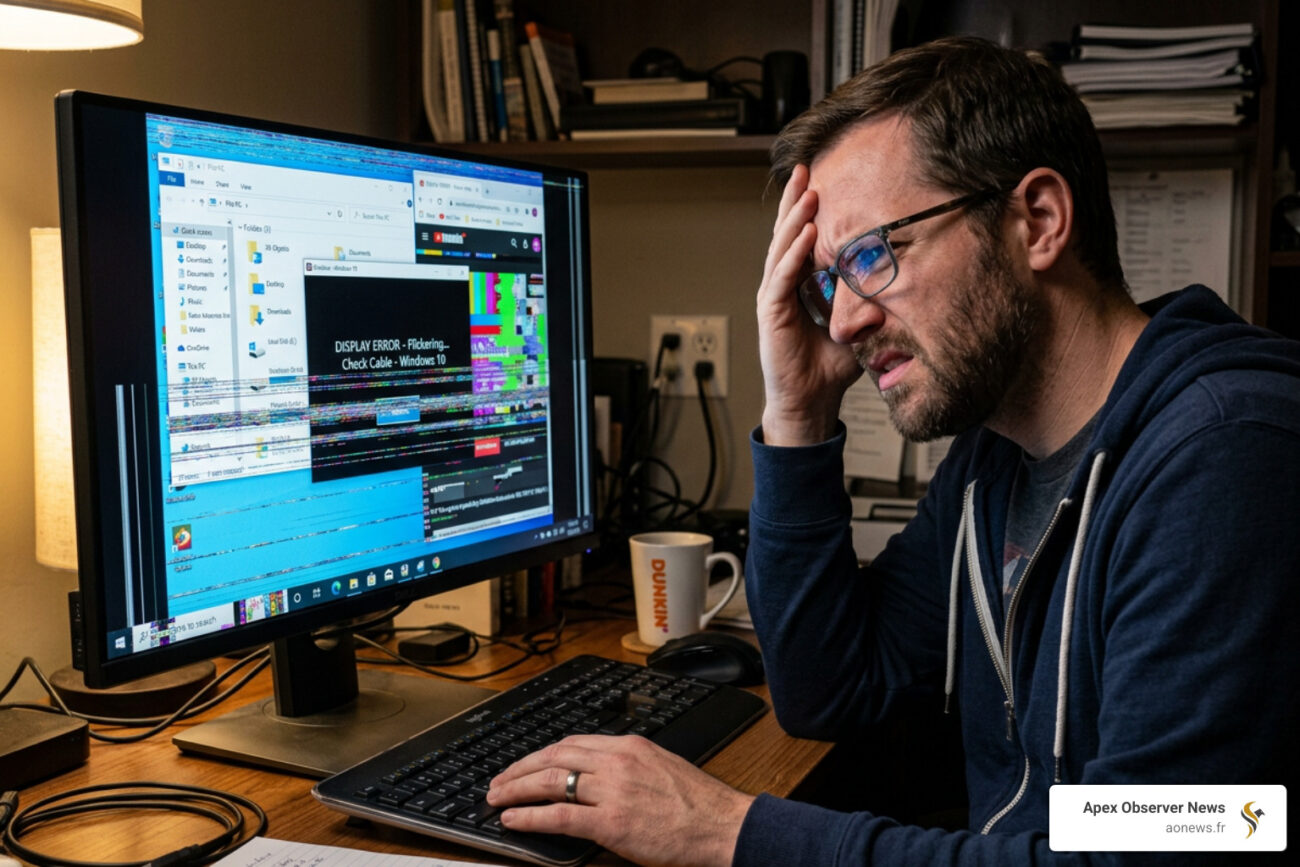
Why Display Issues Windows 10 Users Report Are So Easy to Fix
Display issues Windows 10 users encounter most often come down to a handful of fixable causes. Here’s a quick overview:
Most common Windows 10 display problems and fastest fixes:
| Problem | Quickest Fix |
|---|---|
| Black or blank screen | Press Win + Ctrl + Shift + B to reset graphics driver |
| Screen flickering | Roll back display driver in Device Manager |
| Blurry or fuzzy text | Set resolution to recommended in Display Settings |
| Stretched or zoomed screen | Adjust scaling to 100% in Display Settings |
| Incorrect colors | Recalibrate display via Windows Color Calibration tool |
| No signal / second monitor not detected | Press Win + P to cycle display modes |
Most of these problems are software or driver related — not hardware failures. That means you can usually fix them yourself in minutes.
I’m Faisal S. Chughtai, founder of ActiveX, with years of hands-on experience resolving display issues Windows 10 across custom-built PCs, laptops, and enterprise setups. Let’s walk through every fix, step by step.
Identifying Common Display Issues Windows 10 Users Face
When your screen starts acting up, it can feel like your computer is on its last legs. However, most display issues windows 10 users face fall into specific categories that we can diagnose quickly. Identifying whether the problem is software-based (drivers and settings) or hardware-based (cables and monitors) is the first step toward a solution.
Common symptoms include:
- The Black Screen of Death: This can happen before or after login. Sometimes you see a cursor; sometimes you don’t.
- Screen Flickering: This is often a battle between an incompatible app and your display driver.
- Blurry or Fuzzy Text: Usually a result of incorrect scaling or resolution settings.
- Stretched Images: When your widescreen monitor thinks it’s a square, making everything look “fat.”
- Color Distortion: Washed-out colors or a strange yellow tint (often just the Night Light feature!).
To help you narrow it down, we’ve put together this comparison table to help you distinguish between a quick software tweak and a trip to the repair shop.
| Symptom | Likely Software Issue | Likely Hardware Issue |
|---|---|---|
| Flickering | Happens only in certain apps | Happens even in the BIOS menu |
| Lines on Screen | Disappears after a driver update | Persistent jagged vertical/horizontal lines |
| No Image | PC responds to Caps Lock/Num Lock | Monitor power light is off or “No Signal” |
| Blurry Text | Fixed by changing Resolution | Physical damage or cracked LCD panel |
How to Fix Screen Flickering and Black Screens
Screen flickering is one of the most distracting display issues windows 10 can throw at you. It’s usually caused by one of two things: an incompatible application or a faulty display driver.
The Task Manager Test
We recommend using the “Task Manager Test” to find the culprit. Press Ctrl + Shift + Esc to open Task Manager. Watch the screen closely:
- If Task Manager flickers along with the rest of the screen, the issue is almost certainly your display driver.
- If Task Manager does NOT flicker while the background does, an incompatible app is causing the problem.
If it’s an app, look for recently installed software like third-party antivirus programs, iCloud, or older system utilities. You may need to uninstall them to restore stability.
Fixing the Black Screen
A blank screen doesn’t always mean the PC is off. If you can hear the fans spinning, try these steps:
- Wake the screen: Sometimes Windows just loses its connection to the monitor. Press any key or click the mouse.
- Check the hardware: Ensure your HDMI, DisplayPort, or VGA cables are seated firmly. If you’re using a laptop with an external monitor, try unplugging the monitor to see if the internal screen wakes up.
- Restart Explorer.exe: If you have a black screen with a cursor, press
Ctrl + Alt + Del, select Task Manager, click “File” > “Run new task,” typeexplorer.exe, and hit Enter. This often brings your desktop back to life.
For more detailed steps, Microsoft offers a Troubleshoot screen flickering in Windows guide that covers specific driver scenarios.
Quick Shortcuts to Reset Display Issues Windows 10
When your screen goes dark or freezes, you don’t always have to reach for the power button. Windows has built-in “emergency” shortcuts designed to reset the graphics subsystem.
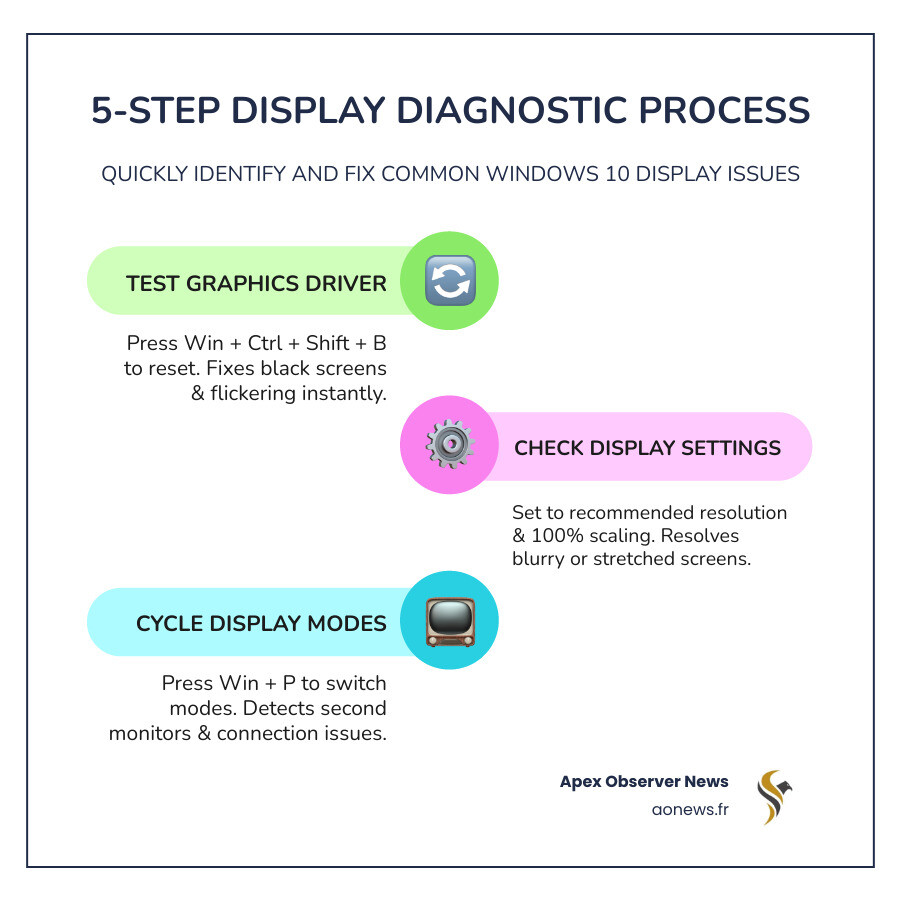
- Win + Ctrl + Shift + B: This is the magic “reset” button. It restarts your graphics driver. You’ll hear a beep and the screen will flicker for a second. This is often enough to fix a black screen after waking from sleep.
- Win + P: If you use multiple monitors, your PC might be trying to project to a screen that isn’t there. Press this and use the arrow keys to cycle through “PC Screen Only,” “Duplicate,” “Extend,” and “Second Screen Only.”
- Ctrl + Alt + Del: Use this to access the security options menu, which can help you Repair your broken Windows File Explorer in minutes if the shell has crashed.
Correcting Blurry, Stretched, or Low-Resolution Screens
If your screen looks like a watercolor painting or everything is giant and stretched, you’re likely dealing with a resolution mismatch. Windows 10 is generally good at picking the “Native Resolution,” but updates or new monitor connections can throw it off.
Using Native Resolution and Scaling
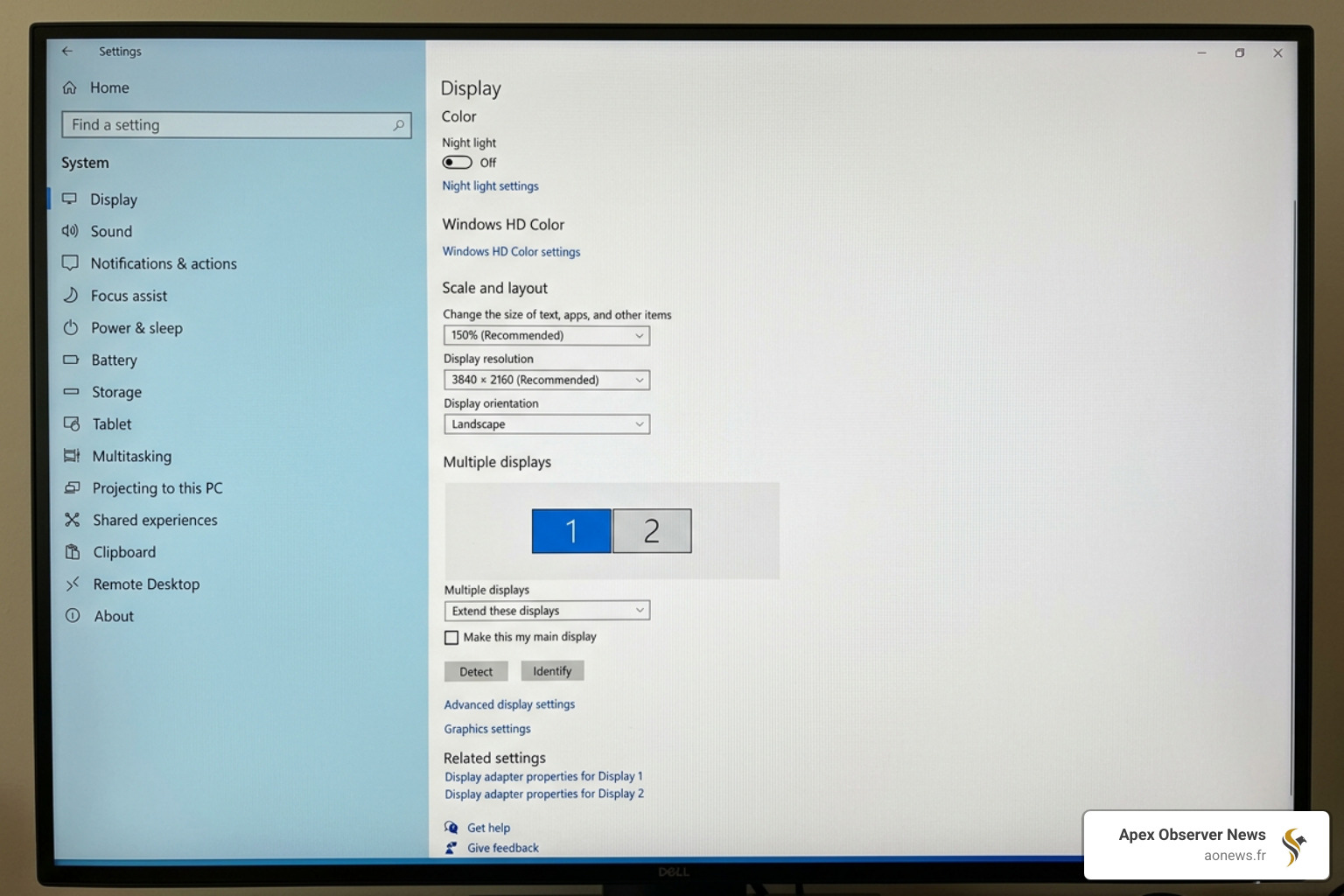
To fix this, right-click your desktop and select Display settings.
- Scroll down to Display resolution. Ensure it is set to the setting that has “(Recommended)” next to it.
- Check the Scale and layout section. For most monitors, this should be 100%. If you are using a 4K monitor or a small laptop screen, it might be 125% or 150% to make text readable.
Wireless Projection and Miracast
Sometimes display issues windows 10 occur when trying to project wirelessly. Miracast allows you to beam your screen to a compatible TV or projector. If the image is laggy or stretched during wireless projection, ensure both devices are on the same Wi-Fi network and that your graphics driver supports Miracast.
Fixing Blurry or Fuzzy Display Issues Windows 10
If the resolution is correct but the text still looks “off,” you might need to adjust your ClearType settings. Type “Adjust ClearType text” into the Windows search bar and follow the wizard to pick the text samples that look sharpest to your eyes.
Another hidden culprit is the Refresh Rate. A low refresh rate (like 30Hz on a 60Hz monitor) can cause motion blur and flickering.
- Go to Display settings > Advanced display settings > Display adapter properties for Display 1 > Monitor tab.
- Ensure the “Screen refresh rate” is set to the highest available stable frequency (usually 60Hz, 144Hz, or higher for gaming monitors).
Advanced Driver Management and System Repair
When basic settings don’t work, it’s time to go deeper. Most persistent display issues windows 10 are rooted in the communication between the OS and the hardware—the drivers.
Rolling Back or Reinstalling Drivers
If your display started acting up immediately after a Windows Update, you should “Roll Back” the driver:
- Right-click the Start button and select Device Manager.
- Expand Display adapters.
- Right-click your graphics card (e.g., Intel HD Graphics, NVIDIA GeForce, or AMD Radeon) and select Properties.
- Under the Driver tab, click Roll Back Driver.
If that button is greyed out, select Update driver instead, or choose Uninstall device, check the box for “Delete the driver software for this device,” and restart your PC. Windows will automatically attempt to reinstall a fresh driver upon reboot.
Using Safe Mode for Troubleshooting
If you can’t see anything on your screen during a normal boot, you’ll need to enter Safe Mode. This loads Windows with only the most basic drivers.
- To enter Safe Mode when the screen is black: Interrupt the boot process (turn the PC off as it’s starting) three times in a row. This triggers Automatic Repair.
- From there, navigate to Troubleshoot > Advanced options > Startup Settings > Restart.
- Press 5 or F5 for Safe Mode with Networking.
System Restore and BIOS
If software fixes fail, a System Restore can take your PC back to a time when the display worked perfectly. As a last resort for hardware detection issues, you may need to enter your BIOS/UEFI (usually by pressing F2, F10, or Del during startup) and reset settings to “Setup Defaults.”
If your system is completely unbootable, you may need to create a bootable Windows 10 drive on another computer to run advanced repairs or reinstall the OS.
Frequently Asked Questions about Windows 10 Display Issues
Why is my screen black after a Windows update?
This is usually due to a driver incompatibility. Windows might have installed a generic driver that doesn’t play nice with your specific graphics card. Booting into Safe Mode and reinstalling the manufacturer-specific driver (from NVIDIA, AMD, or Intel) usually fixes this.
How do I fix a stretched screen on Windows 10?
A stretched screen almost always means your Display Resolution is set to a 4:3 ratio on a 16:9 monitor. Go to Display Settings and select the “Recommended” resolution. If that doesn’t work, ensure your graphics card software (like NVIDIA Control Panel) isn’t forcing a specific aspect ratio.
What causes a blinking cursor on a black screen?
A blinking white underscore on a black screen usually means your computer can’t find the operating system. This is often a BIOS/UEFI issue where the boot order has changed, or the hard drive connection is loose. It is rarely a “display” issue and more of a “boot” issue.
Conclusion
At Apex Observer News, we know how frustrating it is when your technology stops cooperating. Whether it’s a flickering monitor or a total black screen, most display issues windows 10 can be resolved with a little patience and the right shortcuts. By following this guide, you can save yourself a trip to the technician and get back to work (or gaming) in no time.
For more tech troubleshooting, check out our guides on other common Windows hurdles, such as what to do when there is No Wi-Fi option in Windows 11? Here’s how to restore it or if you find the Windows 11 WiFi option not showing on your newer devices. Stay tuned to us for the latest in tech news and practical fixes!
