

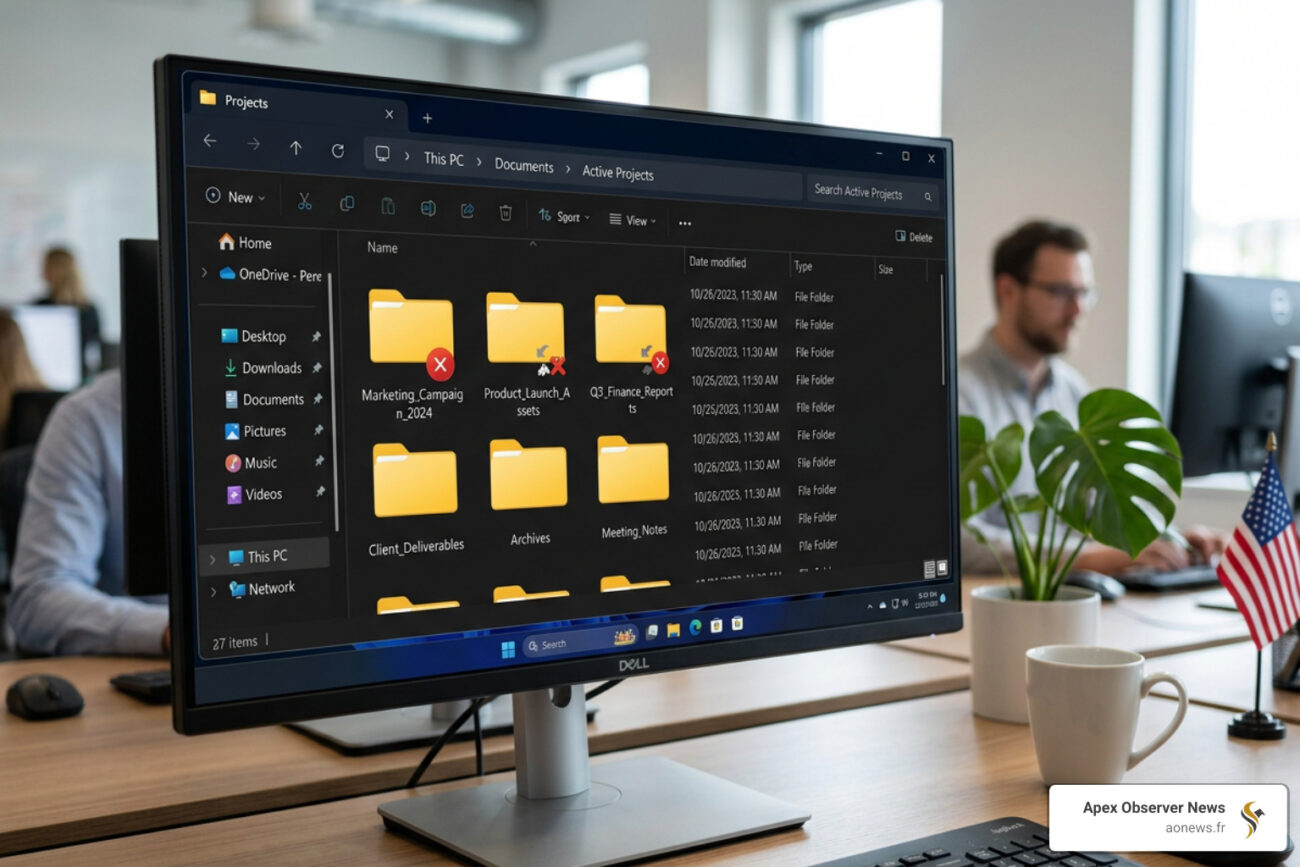
When Windows File Explorer Breaks, Your Whole PC Feels Broken
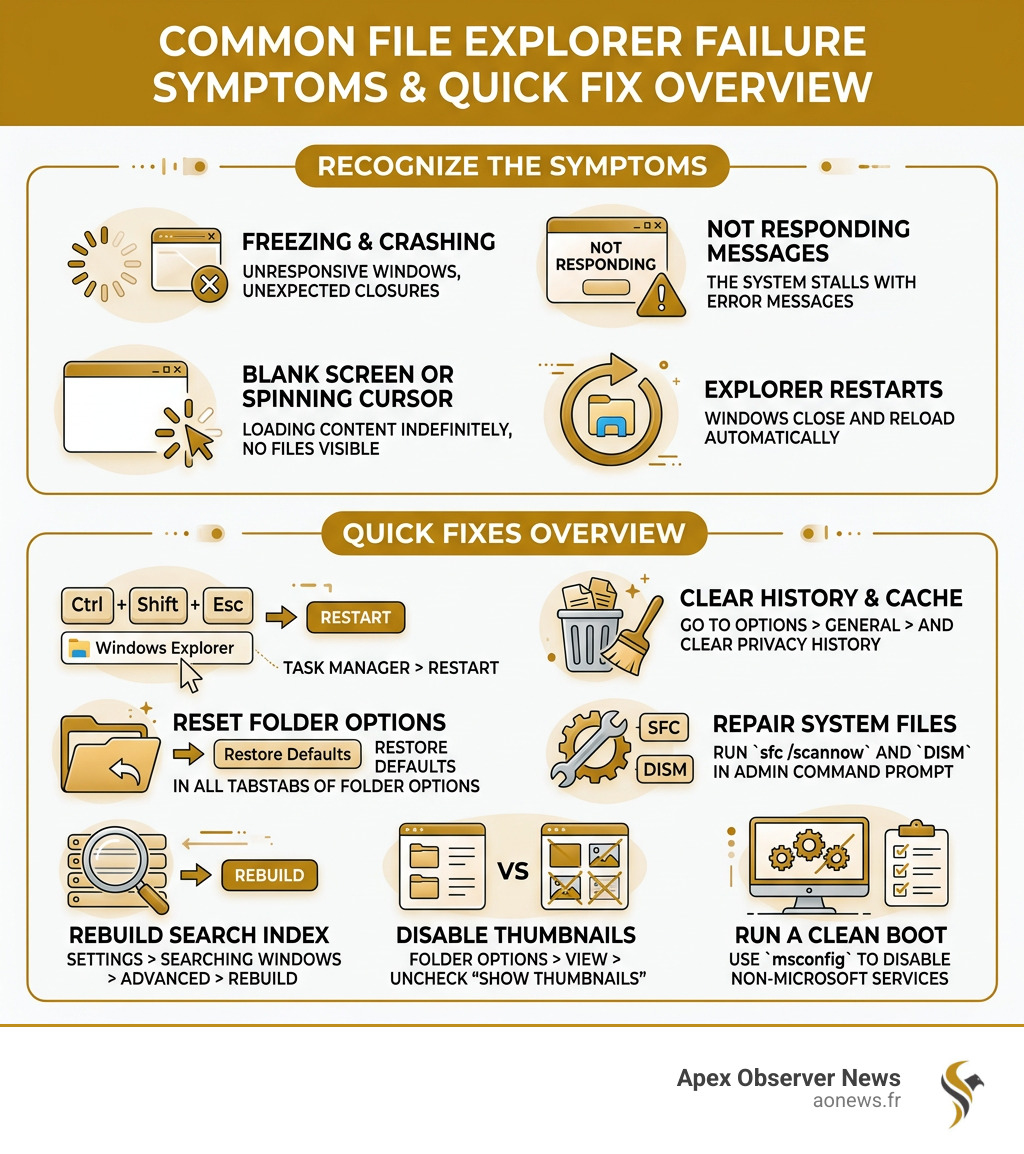
Fix Windows File Explorer fast with these proven steps:
- Restart Explorer — Press
Ctrl+Shift+Esc, find Windows Explorer in Processes, right-click, and select Restart. - Clear history and cache — Open File Explorer Options, go to the General tab, and click Clear under Privacy.
- Reset all Folder Options — Restore defaults in the General, View, and Search tabs of File Explorer Options.
- Repair system files — Run
sfc /scannowin an admin Command Prompt, then follow up withDISM /Online /Cleanup-Image /RestoreHealth. - Rebuild the Search Index — Go to Settings > Privacy & Security > Searching Windows > Advanced Indexing Options > Rebuild.
- Disable thumbnails and preview pane — In Folder Options > View, check Always show icons, never thumbnails.
- Run a Clean Boot — Use
msconfigto disable non-Microsoft services and isolate conflicting startup items.
File Explorer is the backbone of Windows. Every time you open a folder, move a file, or browse your drives, you’re using it. When it freezes, crashes, or refuses to open, your entire workflow stops cold.
The problem is surprisingly common. It can show up as a blank screen, a spinning cursor, a “Not Responding” message, or an Explorer window that vanishes and restarts on its own. Sometimes it happens once. Sometimes it happens every few minutes.
The causes range from simple cache buildup to corrupted system files, bad video drivers, broken search indexes, or third-party apps that quietly hijack File Explorer’s settings. The good news? Most of these are fixable without reinstalling Windows.
I’m Faisal S. Chughtai, founder of ActiveX, with years of hands-on experience in Windows system management, app development, and tech troubleshooting — including helping users fix Windows File Explorer across a wide range of hardware and software environments. In this guide, I’ll walk you through every fix, starting with the quickest solutions and escalating only if needed.
Quick Fixes to Fix Windows File Explorer Immediately
When your screen freezes or that annoying “Working on it…” message hangs indefinitely, we don’t always have time for deep system surgery. Most File Explorer glitches are temporary hiccups in the explorer.exe process or the result of a bloated history file.
Before you panic, we recommend trying the “quick resets” first. These actions refresh the software’s memory without touching your actual data. Think of it like giving your PC a quick splash of cold water to wake it up.
How to Fix Windows File Explorer Using Task Manager
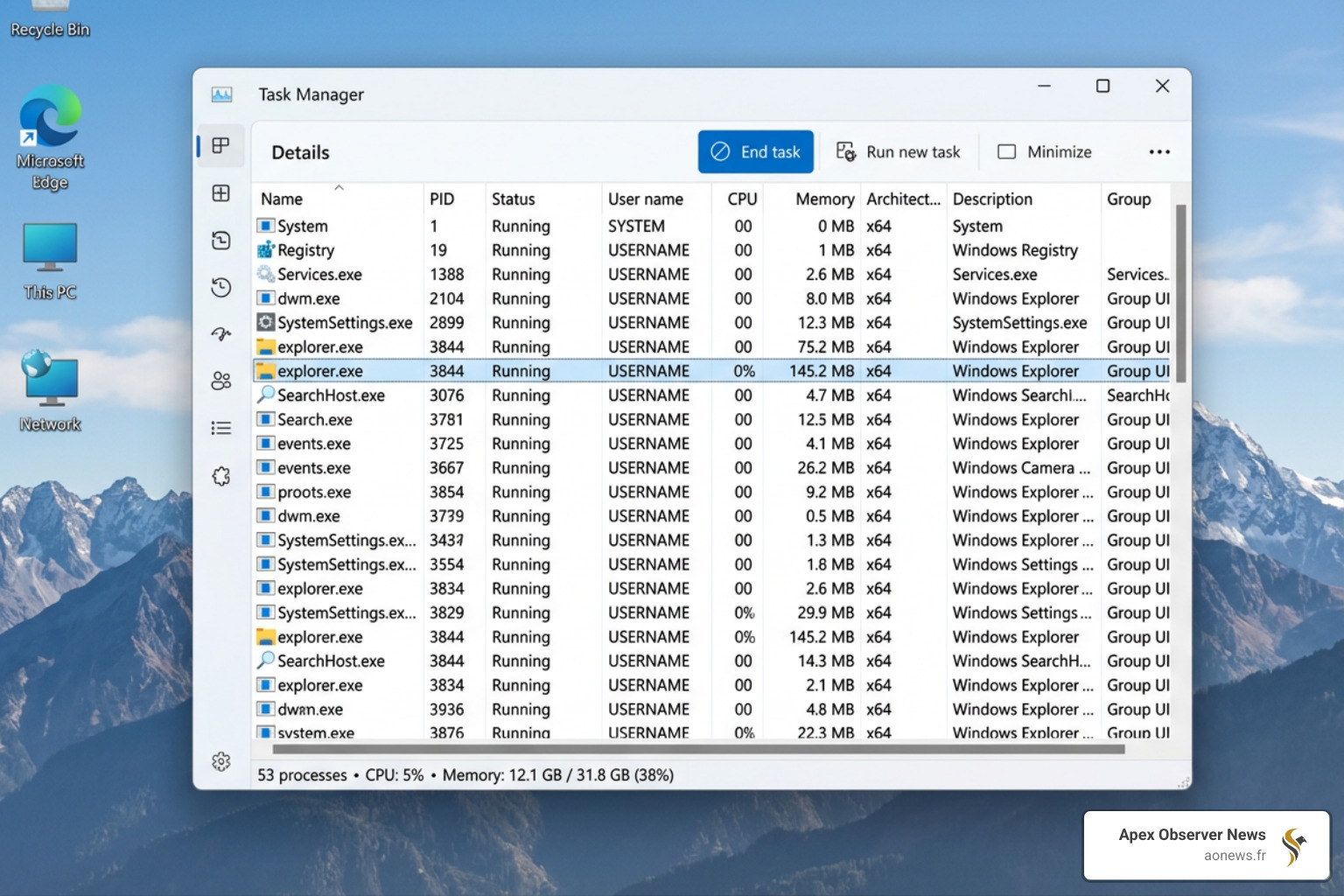
If your taskbar has vanished or your folder windows are frozen, the most effective first step is to restart the explorer.exe process. Simply closing the window isn’t enough; you need to kill the process and let Windows relaunch it.
- Press Ctrl + Shift + Esc to open the Task Manager directly.
- If you see a simplified view, click More details.
- Under the Processes tab, look for Windows Explorer. It is usually near the bottom of the “Apps” section or under “Windows processes.”
- Right-click Windows Explorer and select Restart.
- Your screen might flicker or go black for a second—this is normal! The taskbar and desktop icons will reappear shortly.
This often resolves “Not Responding” loops. However, if you’re also dealing with broader system connectivity issues, such as no Wi-Fi option in Windows 11, you may need to look into network-specific driver fixes alongside these Explorer steps.
Clearing Cache and Resetting Folder Options
Over time, File Explorer keeps a log of every folder you’ve visited and every search you’ve made. While this is meant to be helpful, this history file can become massive, especially if you frequently access network drives or home servers. This buildup often leads to a “working loop” where Explorer struggles to load the history before showing you your files.
To fix windows file explorer performance, we need to clear the slate:
- The General Tab: Search for “File Explorer Options” in your Start menu. Under the General tab, look for the Privacy section. Click Clear next to “Clear File Explorer history.” We also suggest clicking Restore Defaults here.
- The View Tab: Switch to the View tab. Click Reset Folders and then Restore Defaults. This is particularly helpful if a third-party app (like a PDF viewer or a cloud storage tool) has messed with how your folders display.
- The Search Tab: Finally, go to the Search tab and click Restore Defaults.
| Action | What it Clears | Best For |
|---|---|---|
| Clear History | Recent files and frequent folder lists | Slow opening times |
| Reset View | Custom icon sizes, sorting, and hidden file settings | Crashing when opening specific folders |
| Restore Defaults | All customized interaction settings | General instability or “locking” |
Advanced System Repairs for Persistent Crashes
If a simple restart doesn’t do the trick, the problem likely lies deeper within the Windows system files themselves. Corrupted binaries or outdated drivers are frequent culprits. Specifically, outdated video drivers are a known cause for Explorer to stop working, as the shell relies heavily on the GPU to render folder contents and thumbnails.
Using SFC and DISM to Fix Windows File Explorer Corruption
Windows includes built-in “doctors” that can scan your system for broken parts and replace them automatically. We use two primary tools: SFC (System File Checker) and DISM (Deployment Image Servicing and Management).
- Type cmd in your Start search, right-click Command Prompt, and select Run as administrator.
- Type
sfc /scannowand press Enter. This scans all protected system files and replaces corrupted ones with a cached copy. - Once that finishes, type
DISM /Online /Cleanup-Image /RestoreHealthand press Enter. This tool is more powerful; it actually connects to Windows Update to download fresh versions of corrupted system components.
While these tools run, it’s also a great time to update a driver for hardware that isn’t working properly. Keeping your video drivers current ensures that Explorer doesn’t crash while trying to render complex folder views.
Resolving Search Indexing and Service Failures
Does your File Explorer freeze only when you click the search bar? If so, the Windows Search service might be crashing in the background. This service provides content indexing and property caching; if the index is corrupted, it can bring the whole file manager to a halt.
To fix this:
- Open the Control Panel and search for Indexing Options.
- Click Advanced.
- In the Troubleshooting section, click Rebuild.
- A warning will appear saying this might take a while. Click OK.
Your PC might be a bit slow while the index rebuilds, but this is a proven way to stop Explorer from hanging during file searches.
Troubleshooting Third-Party Conflicts and User Profiles
Sometimes, the “call is coming from inside the house.” Many apps we install add themselves to the “Right-Click” (context) menu. These are called shell extensions. If one of these extensions is poorly coded or incompatible with a recent Windows update (like the Windows 11 25H2 update), it can cause File Explorer to crash every time you try to interact with a file.
Managing Third-Party Shell Extensions
To identify the culprit, we recommend a free tool called ShellExView.
- Open the tool and sort the list by Type.
- Look for “Context Menu” items that are not made by Microsoft (they will usually be highlighted in pink or have a different manufacturer name).
- Disable them one by one (Right-click > Disable Selected Items) and restart Explorer.
- If the crashing stops, you’ve found your “bad actor.” You can then either keep it disabled or check for an update for that specific software.
Testing New User Accounts and Profile Integrity
If you’ve tried everything and the crashes persist, the issue might be your specific Windows User Profile. Profiles can become corrupted over time due to registry errors or software conflicts.
To test this, create a new local user account:
- Go to Settings > Accounts > Other Users.
- Select Add account and choose “I don’t have this person’s sign-in information.”
- Select “Add a user without a Microsoft account.”
- Log out of your current account and into the new one.
If File Explorer works perfectly in the new account, your original profile is the problem. You may need to migrate your files to the new profile to fix windows file explorer permanently.
Deep System Recovery and Maintenance
When standard fixes fail, we have to look at “time travel” or “reinstallation.” Windows provides several safety nets to catch you before you have to resort to a total hard drive wipe.
Utilizing System Restore and Automatic Repair
If your File Explorer started acting up after a specific software installation or a weird system change, System Restore is your best friend. It rolls your system settings back to a point in time when everything was working correctly.
- To perform a System Restore, search for “Create a restore point” in Start, click the System Restore button, and choose a date from a few days ago.
- If you can’t even get into Windows to do this, you can start your computer in safe mode. Safe Mode loads only the bare essentials, allowing you to troubleshoot without third-party interference.
- Automatic Repair: If you suspect registry corruption, go to Settings > Update & Security > Recovery > Advanced Startup > Restart Now. From there, navigate to Troubleshoot > Advanced Options > Startup Repair. This tool specifically targets registry issues that might be blocking Explorer from launching.
In-Place Upgrades and Windows Updates
Microsoft frequently releases “emergency patches” for File Explorer. If you are on Windows 11, specifically version 25H2, ensure you have checked Settings > Windows Update for any pending cumulative updates.
If the OS is fundamentally broken, an In-Place Upgrade is the “nuclear option” that doesn’t delete your files. You download the Windows Installation Media tool from Microsoft’s website and select “Upgrade this PC now.” It reinstalls the entire Windows operating system over your current one, fixing deep-seated bugs while keeping your apps and documents exactly where they are.
Frequently Asked Questions about File Explorer
Why does File Explorer keep crashing when I right-click?
This is almost always caused by a third-party shell extension. When you right-click, Explorer tries to load all the custom menu options (like “Scan with Antivirus” or “Upload to Cloud”). If one of those apps is broken, the whole menu—and Explorer—crashes. Use ShellExView to disable non-Microsoft extensions.
How do I fix File Explorer if it won’t open at all?
Try the Task Manager restart method first. If that fails, run the sfc /scannow command in an admin Command Prompt. Often, File Explorer won’t open because a required system file is missing or blocked by malware. We suggest running a full scan with Microsoft Security Essentials or Windows Defender to rule out infections.
Is there a difference between fixing File Explorer on Windows 10 vs Windows 11?
The core engine is the same, but the interface is different. Windows 11 uses a “command bar” instead of a “ribbon.” Windows 11 users are also more likely to experience crashes related to the new “integrated search” and “recommended files” features, which can be fixed by rebuilding the Search Index or clearing the history in File Explorer Options.
Conclusion
At Apex Observer News, we know that tech hurdles like a broken File Explorer can ruin a productive afternoon. Whether it’s a simple cache clear or a deeper dive into shell extensions, most issues can be resolved with a bit of patience and the right steps.
Always remember to create a restore point before making major changes, and keep your drivers updated to prevent future crashes. If your Windows journey hits another snag—like your Wi-Fi options disappearing—we have the guides to get you back online. Stay updated, stay secure, and keep your system running smoothly!
