

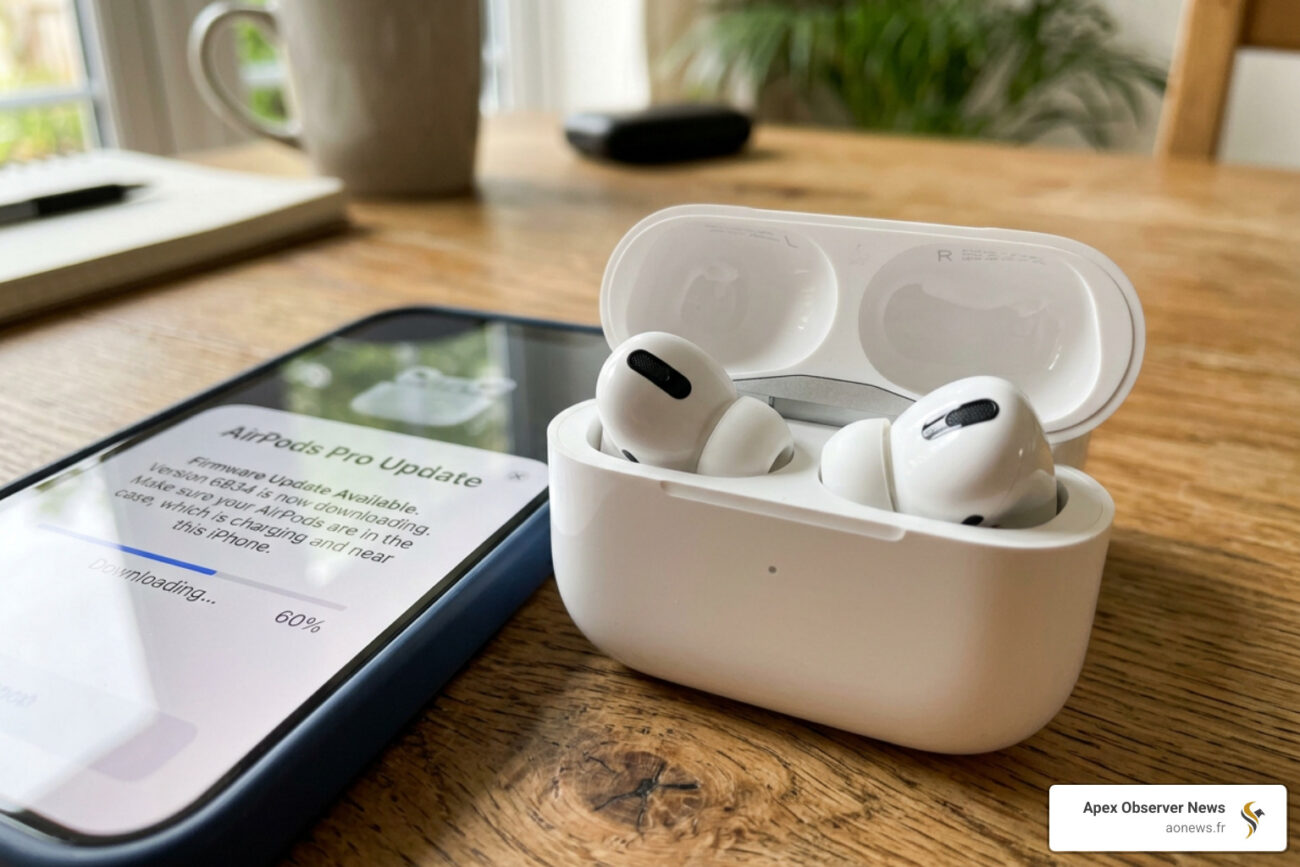
Why Keeping Your AirPods Update Firmware Current Matters
AirPods update firmware is the process of installing the latest software on your AirPods to unlock new features and fix bugs. Here’s a quick answer if that’s all you need:
How to update AirPods firmware (quick steps):
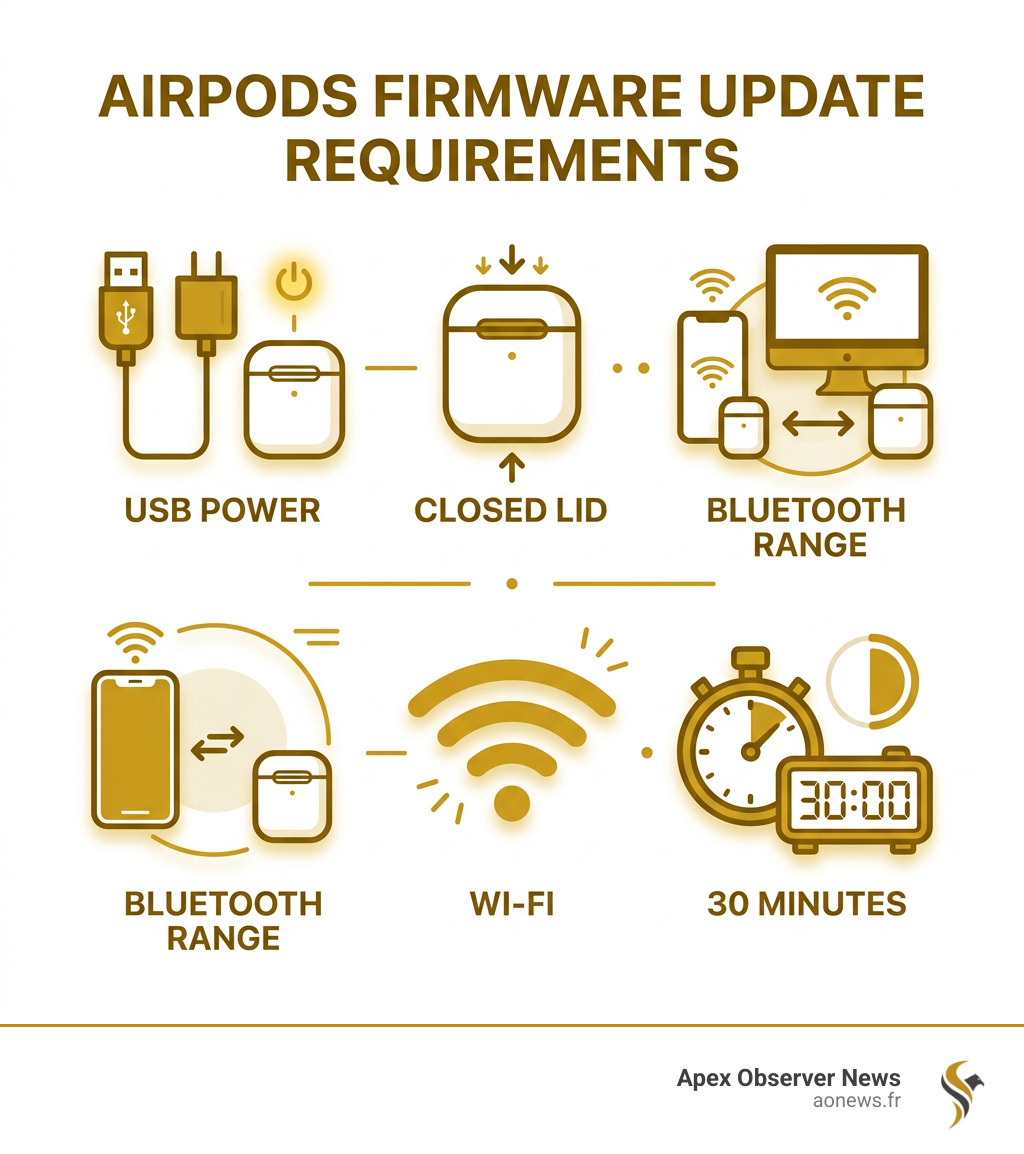
- Put your AirPods in their charging case
- Close the lid
- Plug the case into power using a USB cable
- Keep the case within Bluetooth range of an iPhone, iPad, or Mac connected to Wi-Fi
- Wait at least 30 minutes with the lid closed
- Open the lid and check your firmware version in Settings
Note: Updates happen automatically in the background. You can’t tap a button to force them — but following the steps above gives the update the best chance to install.
Apple pushes AirPods firmware updates silently, with no notification and no progress bar. Most users don’t even know an update happened. But those updates matter. The latest firmware — 8B34 for AirPods Pro 3 — is hoped to fix a widely reported ANC whistling bug that has annoyed users since launch. Earlier updates unlocked features like Live Translation, Hearing Aid support, and heart rate monitoring during workouts.
The catch? If your setup isn’t right, the update simply won’t install — and you won’t know why.
That’s exactly why this guide exists. Whether your firmware is stuck, you just want the latest version fast, or you’re on Android and wondering if there’s any hope — we’ve got you covered with 5 proven methods.
I’m Faisal S. Chughtai, founder of ActiveX and a specialist in digital technology and app optimization, with hands-on experience helping users navigate the nuances of AirPods update firmware across platforms. Let’s make sure your AirPods are running the best software available.
How to Check Your Current AirPods Update Firmware Version
Before we dive into the “how-to,” we need to know where you stand. Apple doesn’t make it obvious, but checking your version is the only way to confirm if an airpods update firmware was successful.
Current versions vary by model. As of early 2026, the latest versions are:
- AirPods Pro 3: 8B34
- AirPods Pro 2 (USB-C/Lightning): 8B28
- AirPods 4: 8B21
- AirPods Pro 1, AirPods 3, AirPods 2: 6F21
For the most official and up-to-date list, you can always check About firmware updates for AirPods.
Finding Version on iPhone or iPad
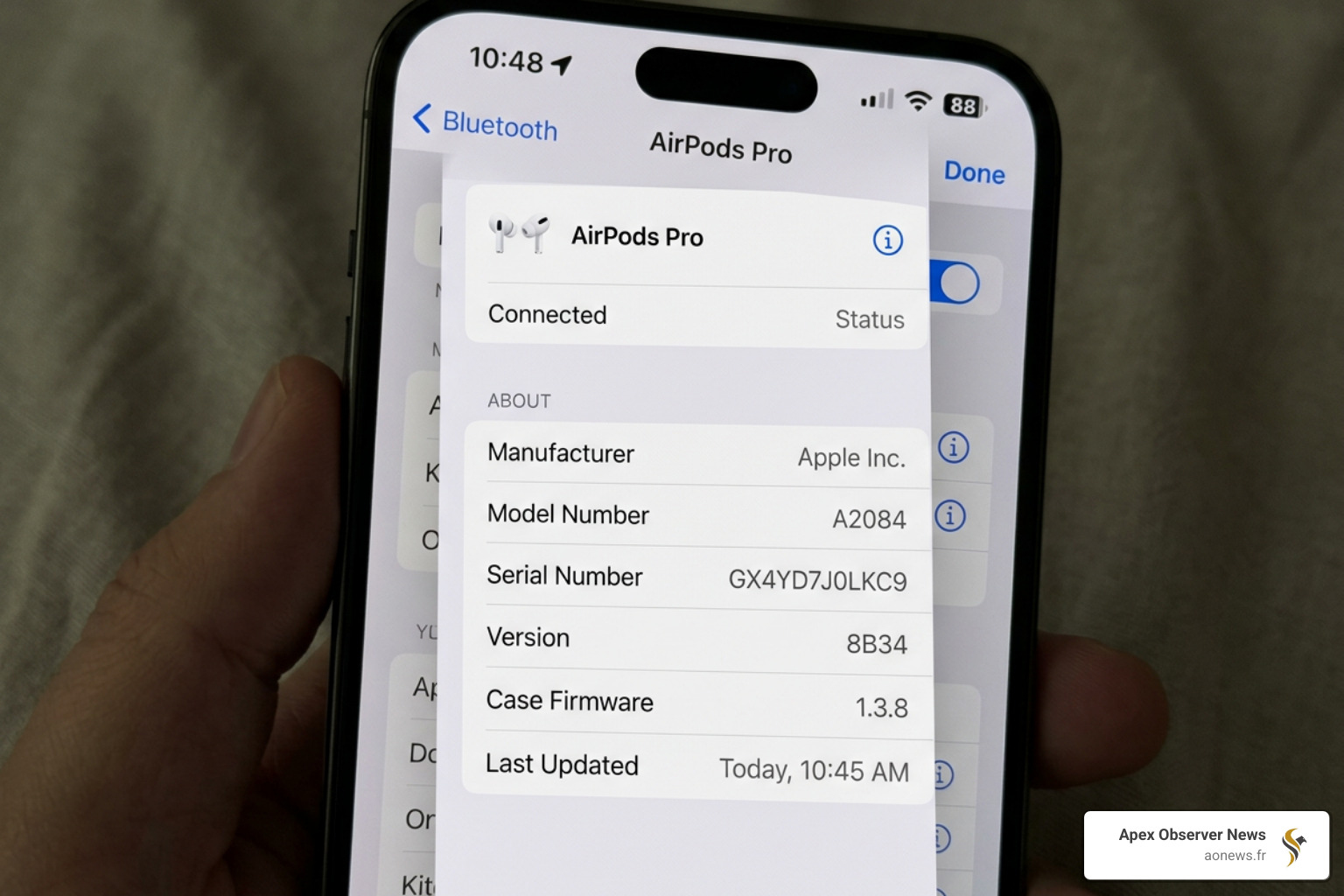
To see which version you are running on your mobile device:
- Open the Settings app.
- Tap on Bluetooth.
- Find your AirPods in the list of devices and tap the Info button (the blue “i” in a circle).
- Scroll down to the About section to find the Version number.
If you are looking to upgrade your hardware to support the latest iOS features, you might be interested in the latest iphone-prices-in-pakistan to ensure your host device is compatible with the newest firmware capabilities.
Checking Firmware on macOS
If you are using a Mac, the process is slightly different but just as easy:
- Click the Apple menu and select System Settings.
- Click Bluetooth in the sidebar.
- Click the Info icon (i) next to your AirPods.
- The version number will be listed in the resulting pop-up.
5 Proven Methods to Update Your AirPods
Unlike an iPhone or a Mac, there is no “Update Now” button for AirPods. However, we can create the perfect environment to “nudge” the system into starting the process.
Method 1: The Automatic Background Update
This is how Apple intended the process to work. Most users will receive the airpods update firmware without ever trying. For this to happen, several conditions must be met simultaneously:
- Your AirPods must be inside the charging case.
- The case lid must be closed.
- The case must be connected to a power source.
- Your paired iPhone, iPad, or Mac must be nearby and connected to Wi-Fi.
If you leave your AirPods charging overnight next to your phone, this usually happens on its own.
Method 2: Step-by-Step: How to Force an AirPods Update Firmware Manually
If you’ve heard about a new feature (like the 8B34 bug fixes) and you want it now, you can attempt to force the update. While it’s still an automated background process, these steps are the official “manual trigger” recommended by Apple:
- Listen to music or audio on your AirPods for at least 30 seconds.
- Place the AirPods back into the charging case and close the lid.
- Connect the charging case to power using a wired USB cable (Lightning or USB-C).
- Place your iPhone or iPad (connected to Wi-Fi) right next to the case.
- Leave it alone for at least 30 minutes. Do not open the lid or move the devices.
- After 30 minutes, open the lid, let them connect to your phone, and check the version in Settings.
Method 3: Firmware Transfer for Mismatched Pairs
Have you recently had a single AirPod replaced by Apple? Or perhaps you bought a replacement case? If so, you might see a flashing amber light. This often means the two earbuds have different firmware versions and cannot pair.
To fix this, we use the firmware transfer process:
- Put both AirPods in the charging case.
- Connect the case to power.
- Open the lid and check the status light. If it flashes amber, press and hold the setup button on the back for a few seconds until it flashes amber.
- Close the lid and let the case sit on power for at least 20 minutes. This allows the firmware to “sync” between the components.
- After 20 minutes, open the lid and hold the setup button for 15 seconds until the light flashes white. You can now re-pair them to your device.
Method 4: Updating via a Mac Connection
If you don’t have an iPhone handy, your Mac can do the heavy lifting. Ensure your Mac is running the latest version of macOS. Follow the same physical steps as Method 2: AirPods in the case, lid closed, case plugged into the Mac or a wall outlet, and kept within Bluetooth range of the Mac.
If you’re using a high-end setup, like the iphone-15-pro-max-price-in-pakistan, the integration between your devices is usually seamless, ensuring the handshake between the OS and the AirPods happens quickly.
Method 5: Updates for Android and Windows Users
Here is the hard truth: You cannot update AirPods firmware using an Android or Windows device. Apple has not released an app for these platforms to manage firmware.
If you use AirPods with an Android phone, your firmware will stay stuck on the version it had when it left the factory. To update:
- Borrow a friend’s iPhone or Mac for 30 minutes.
- Pair your AirPods to their device.
- Follow the “Force Update” steps in Method 2.
- Once updated, unpair them and reconnect to your Android device.
If you don’t have access to an Apple device, your best bet is to Set up an appointment at an Apple Store or an Authorized Service Provider. They have tools to update the firmware for you.
Troubleshooting Your AirPods Update Firmware if it Fails
Sometimes, despite your best efforts, the firmware refuses to budge. We’ve seen reports in the Apple Support Community of users stuck on older versions like 4E71 for months.
Resolving the ANC Whistling Issue
The release of version 8B34 for the AirPods Pro 3 was specifically targeted at “bug fixes and other improvements.” Many users have reported a high-pitched whistling noise when using Active Noise Cancellation (ANC), particularly on airplanes or in windy environments. If you are experiencing this, getting to 8B34 is a priority. If the update doesn’t fix it, the issue might be hardware-related (clogged microphone meshes), and you should contact support.
What to Do if Firmware is Stuck
If you’ve waited 30 minutes and nothing has changed, try a factory reset:
- Go to Bluetooth settings on your phone and “Forget This Device.”
- Put your AirPods in the case and close the lid for 30 seconds.
- Open the lid. Press and hold the setup button on the back for about 15 seconds until the status light flashes amber, then white.
- Re-pair the AirPods and try the update process again.
For a detailed walkthrough, see How to reset your AirPods and AirPods Pro.
Frequently Asked Questions
Can I update AirPods firmware on Android?
No. There is no native support for firmware updates on Android. You must pair the AirPods with an Apple device (iPhone, iPad, or Mac) to trigger the update.
Does wireless charging work for firmware updates?
While some users report success with MagSafe or Qi charging, a wired USB connection is much more reliable for triggering an update. Apple’s official documentation specifically mentions plugging the case into power, and many tech experts recommend the cable to ensure the case doesn’t slip off a wireless puck and interrupt the 30-minute window.
How long does an AirPods firmware update take?
The actual download and installation usually take about 5 to 10 minutes, but because the process is handled entirely in the background with no progress bar, we recommend leaving the AirPods in the “update state” (case closed, plugged in, near iPhone) for at least 30 minutes to be safe.
Conclusion
Keeping your airpods update firmware current is the best way to ensure your expensive earbuds continue to sound great and work reliably. Whether you’re chasing the latest Hearing Aid features or just trying to kill that annoying ANC whistle, the methods above are your best path to success.
At Apex Observer News, we keep a close eye on Apple’s silent releases so you don’t have to. For more guides on maximizing your gear, check out our More technology news section. Stay updated, stay connected, and enjoy the music!
